
Review and clean up
LogicPhoto helps you review a large library without making deletion decisions for you. Manual swipe review and confirmed deletion are free. Scanning, Similar groups, AI suggestions and Ratings require Plus or Pro, or active three-day access.
The review flow
Section titled “The review flow”- Choose how to review
Use the free one-photo review for manual choices, or use Cleanup → Similar and Cleanup → Ratings for AI-assisted review.
- Mark Keep or Delete
In a similar group, inspect the full-size image and nearby versions. AI picks are suggestions; you decide which items to keep or queue for deletion.
- Review the delete queue
Remove any photo you changed your mind about before confirming the whole selection.
- Confirm once
Selected items move to Apple Photos Recently Deleted. Swiping past a photo or adding it to the queue does not delete it.
Compare similar photos
Section titled “Compare similar photos”- Open Cleanup → Similar.
- Open a group and inspect the full-size photo and the nearby choices.
- Use Keep for the version you want and Delete for a version you no longer need.
- Move through the group before applying the group decision.
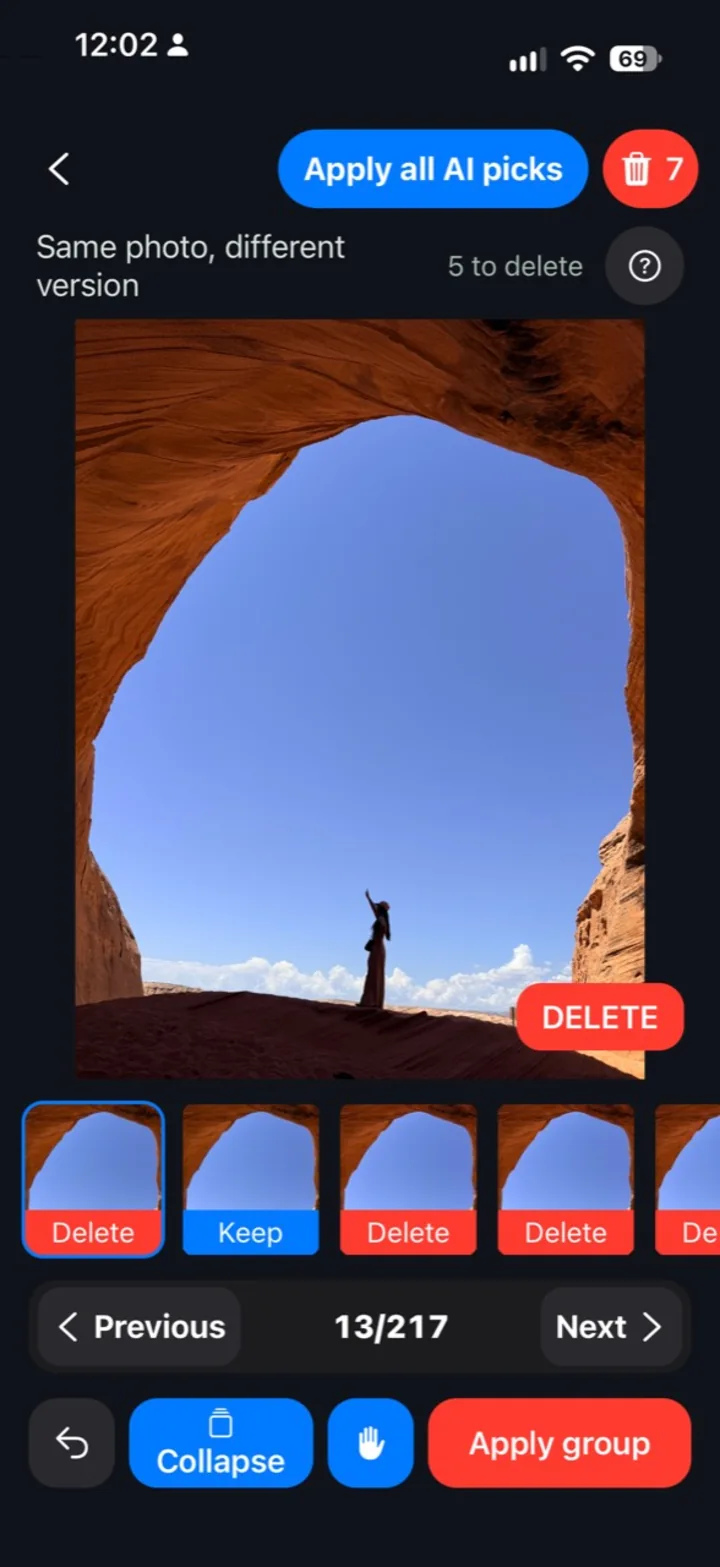
Test-build example. Photos and counts vary; the current route is Cleanup → Similar.
Similar grouping and AI picks are suggestions. Photos taken close together can still be different moments. Look at faces, sharpness and the details that matter to you before acting.
Review the delete queue
Section titled “Review the delete queue”The trash button shows items selected for deletion. You can remove an item from that queue before the final action. The confirmation moves selected items to Apple Photos Recently Deleted; it does not silently erase them while you browse.
If iCloud Photos is enabled, an Apple Photos deletion can sync across your Apple devices. Apple controls how long items remain recoverable in Recently Deleted. Check that album in Photos if you need to restore something.
Ratings and protected photos
Section titled “Ratings and protected photos”Ratings help you surface photos worth another look. They are not a guarantee that a photo is good or bad. Protect a photo you know you want to keep before running a broad cleanup session.
For the short illustrated path, see How it works. For a new scan, see Scan and indexing.