
Scan and indexing
Scan prepares local information used by Similar groups and Ratings. Scan requires Plus or Pro, or active three-day access. It never deletes a photo; free one-photo manual review does not require a scan.
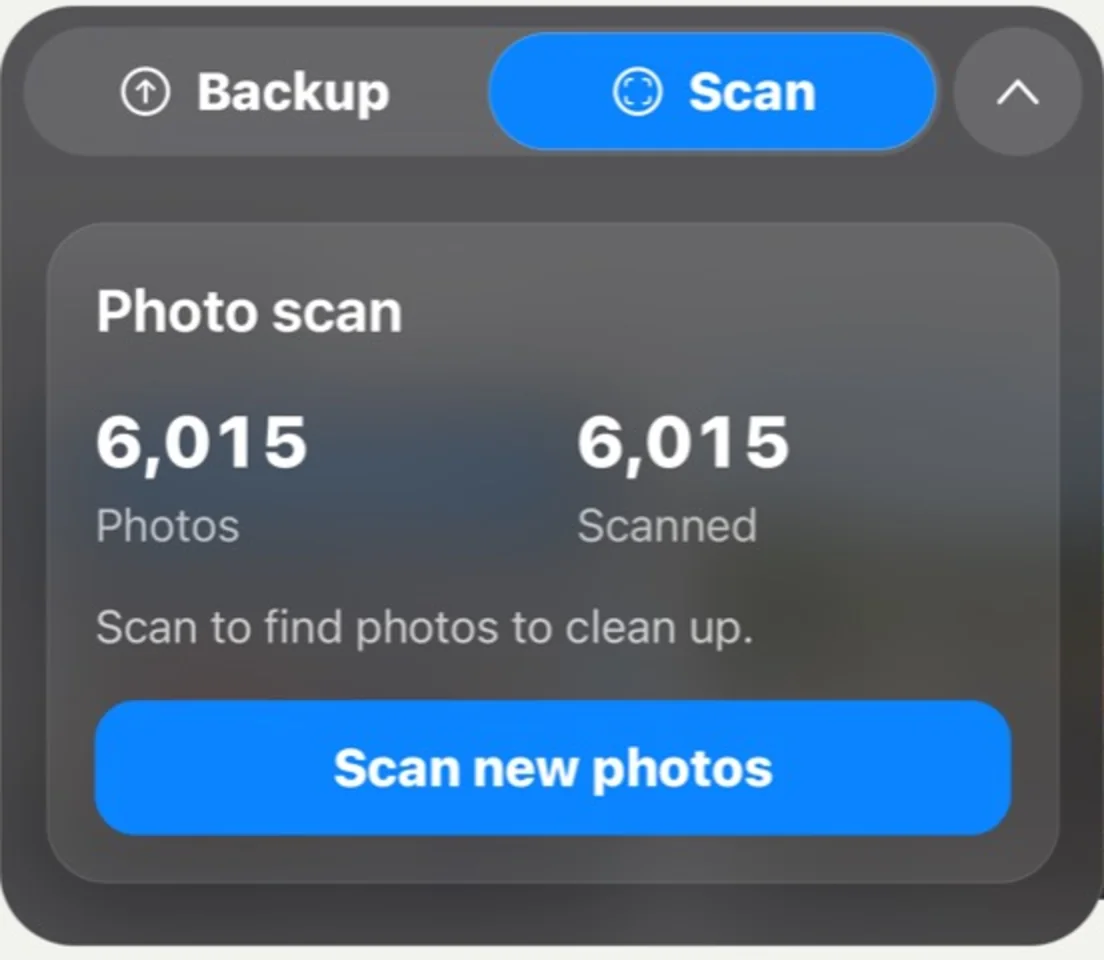
Test-build example. The displayed counts are sample values, not a target or expected result.
Use Scan without repeating work
Section titled “Use Scan without repeating work”- Check Photos access
All Photos shows the full library. Limited access scans only the items you selected.
- Open Cleanup tasks and choose Scan
The Photos count is the current scope; Scanned is the number processed. A new scan does not remove earlier photos.
- Wait for completion, then review
Open Similar or Ratings after results are ready. Use Rescan only when the library changed or the current result needs refreshing.
Read the numbers
Section titled “Read the numbers”- Photos is the number of items currently in scope. Limited Photos permission may make this smaller than your whole Apple Photos library.
- Scanned is the number processed by the current scan record.
- The action may read Scan, Scan new photos or Rescan, depending on whether a scan exists and the library changed. It never erases earlier results.
The percentage or count can remain still briefly while iOS reads a large item. If it stays unchanged for several minutes, open the Scan panel and check its current status. Use Pause and Continue once to retry the current task; do not repeatedly start new scans. If it still cannot advance, note the displayed phase or error and contact Support. Scanning does not delete photos.
Search results can lag behind
Section titled “Search results can lag behind”Search and some cleanup suggestions use information that has already been indexed. A recent photo may not appear in every result immediately. Check Photos permission first, then scan again if the library changed.
See Getting started for Photos access, or Review and clean up to decide what stays after scanning.